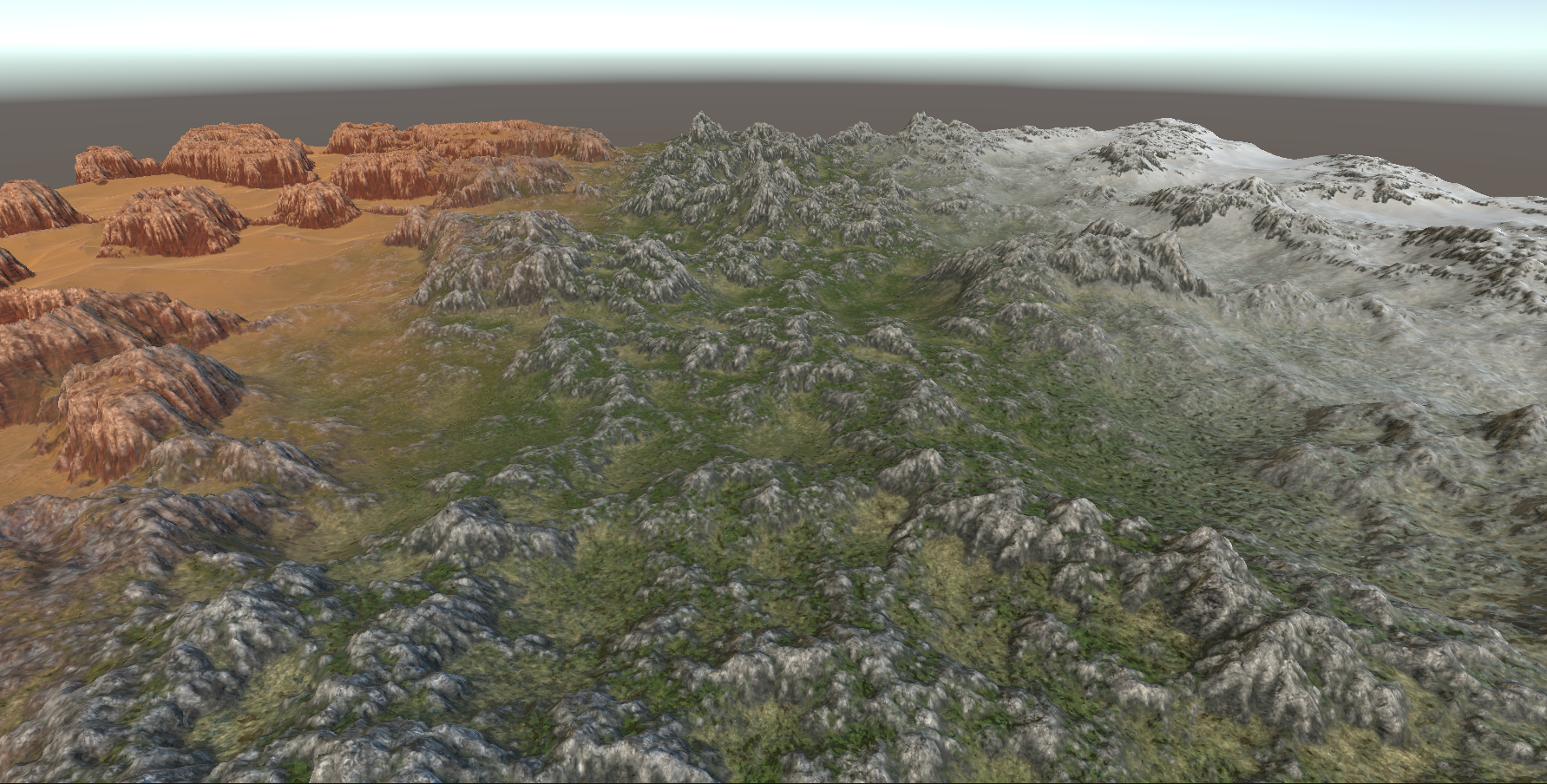
MapMagic
MapMagic2 Must Be Installed
Applying Repetitionless
To use repetitionless on a MapMagic terrain, add a RepetitionlessMapMagic component to the object that has the MapMagicObject
- Select the map magic terrain you want to use
- Select
Add Component - Select
Repetitionless Map Magic
To add a material you can either:
- Click the
Create New Materialbutton - Assign a material in the
Main Materialfield
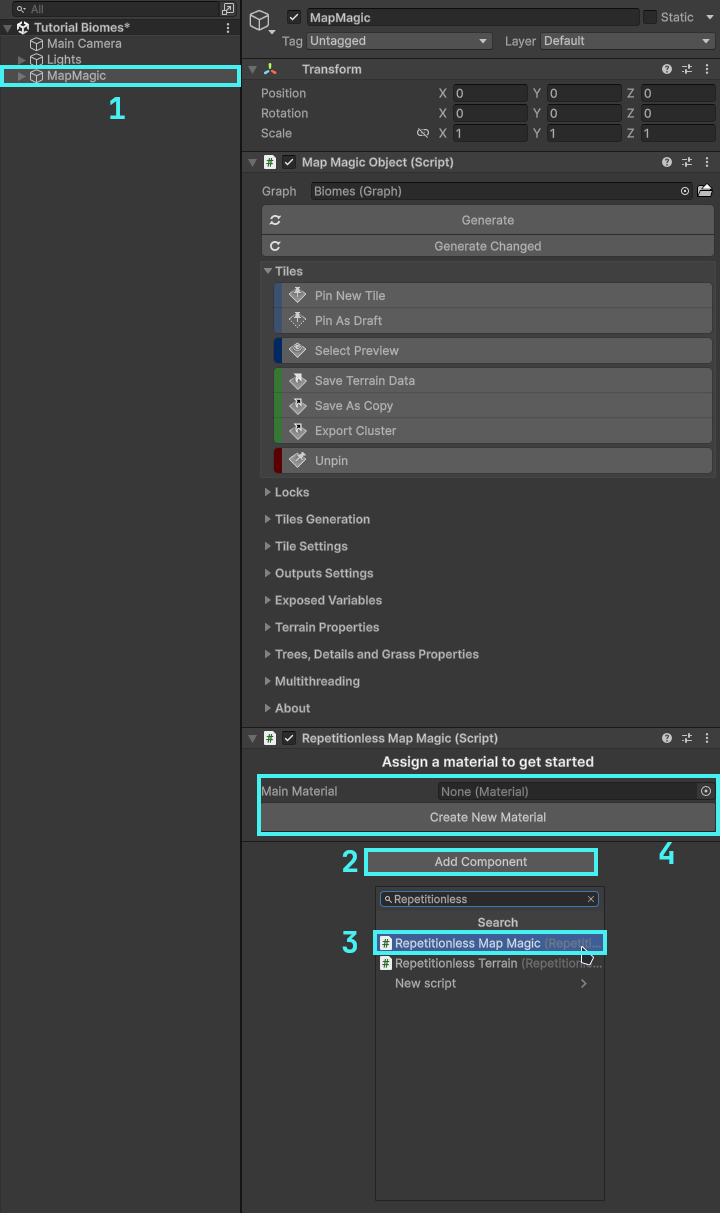
Using the script
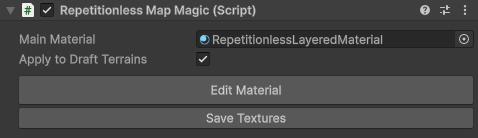
| Setting | Description |
|---|---|
| Main Material | The material applied to the terrains |
| Apply to Draft Terrains | Toggles if the material is applied to draft (Low-Detail) terrains |
| Edit Material | Opens the inspector for the selected material |
| Save Textures | Reapplies the terrain materials if required, and syncs the terrain layers to the material. Click this if you have any issues with the terrain |
The script automatically applies and updates RepetitionlessTerrain components to all the terrains that the MapMagicObject creates. It will also do the same for terrains generated in play mode
After creation, you can then edit the material by clicking Edit Material or selecting the material and everything will be automatically applied to all terrains the MapMagicObject created
This has all the same constraints as and the interface is almost identical to RepetitionlessTerrain components so for more details, view the Using Layered Materials Page
Preview
Terrain Lit
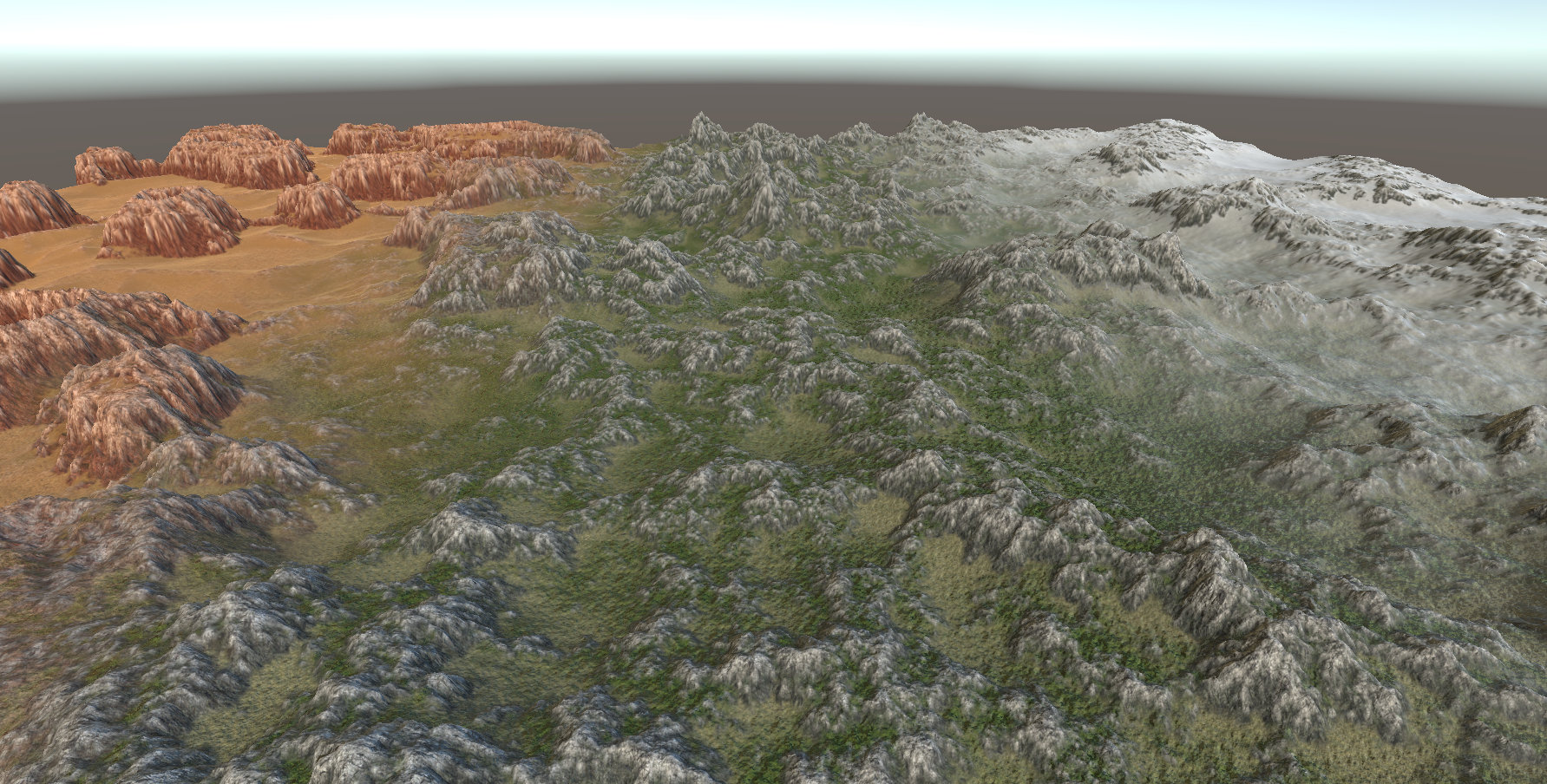
Repetitionless (Default Material Settings)